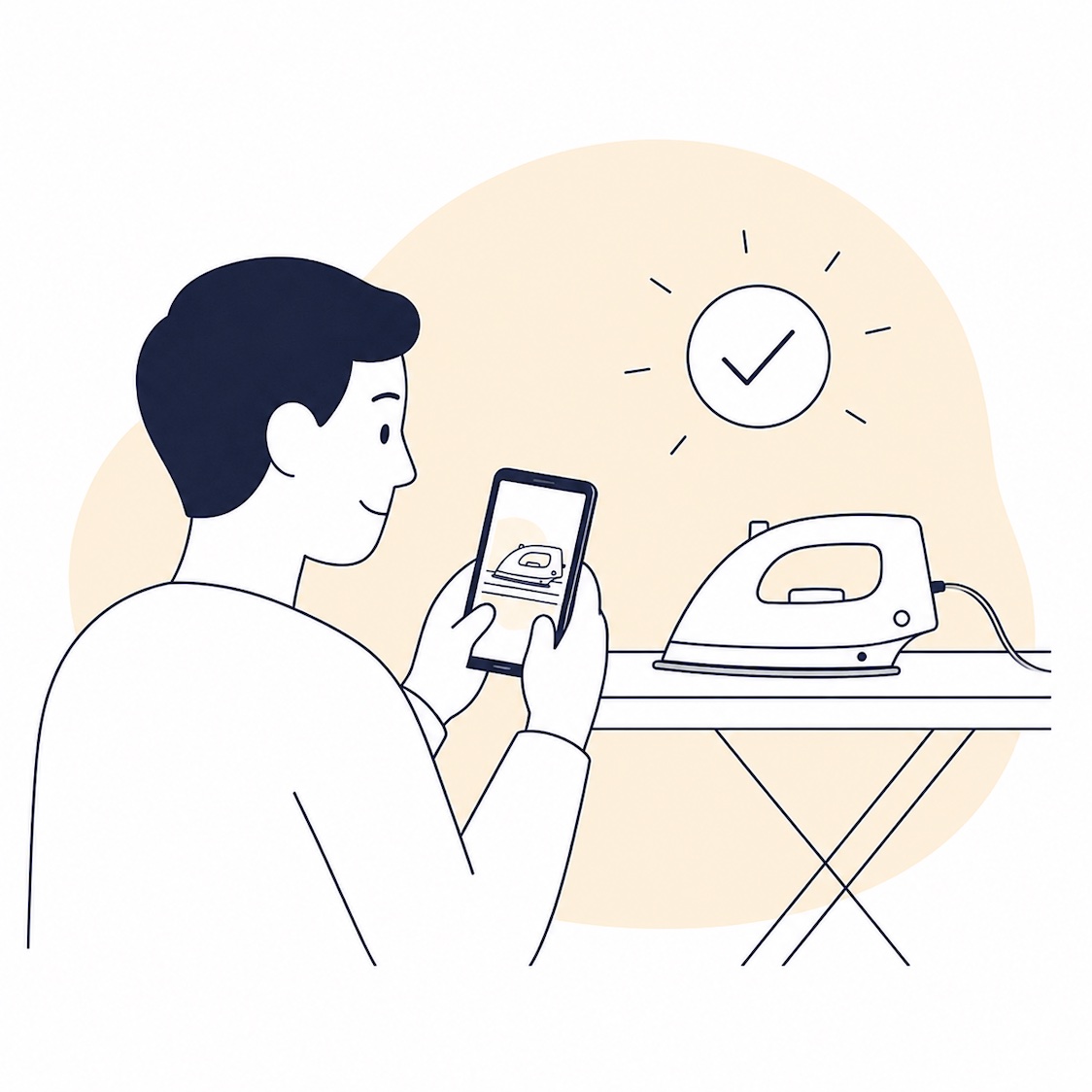
For a lot of people, Apple Shortcuts sounds like one of two things: either something too geeky to be worth the effort, or the kind of flashy automation that looks great in a video and then quietly dies by the next Monday. With ADHD, the problem usually is not knowing that automation exists. The problem is that your day falls apart on tiny decisions. Turn Focus on or not. Open Calendar first or check email. Come back to the task in 20 minutes or vanish into something random again. This is exactly where Shortcuts can become genuinely useful.
A good shortcut should not be impressive. It should remove one small piece of friction at the exact moment your brain is already overloaded. Apple’s own setup works well for that: shortcuts can run from Siri, Spotlight, the keyboard, the menu bar, the Dock, and personal automations, while Focus modes sync across Apple devices. The point is not to build a giant control panel for your life. The point is to stop spending mental energy on the same small setup steps over and over.
Why Shortcuts fit executive dysfunction so well
Executive dysfunction often hits transitions harder than big goals. Starting work. Stopping a scroll spiral. Moving from a meeting into deep work. Not forgetting one small but important next step. Apple Shortcuts helps because it can connect Focus, Reminders, Calendar, Notes, Safari, Messages, and system settings without a heavy interface. If an automation removes even three manual actions, it is already doing real work.
1. Start Work Shortcut
Best for the moment when you are technically at your desk but your brain still has not switched into work mode
- What it is: one shortcut that turns on Work Focus, opens the right apps, and surfaces your main tasks for the day.
- Who it is for: people who lose 10 to 15 minutes every morning wandering between email, the browser, and messaging apps.
- ADHD use case: move from chaos into a clear starting screen with one trigger.
- Mac / iPhone compatibility: works on both Mac and iPhone; Focus syncs across devices.
- Price: free, built on Apple’s Shortcuts app.
- Main advantage: removes startup friction and stops the day from beginning with random triggers.
- Main limitation: if you have not chosen one to three real priorities, the shortcut will not do that thinking for you.
The simplest version is enough: turn on Work Focus, open Reminders or Notes with your list for the day, open your calendar, and launch one work app. That is it. No fancy layers. The goal is not automation for its own sake. The goal is to stop spending willpower on the same four clicks every morning.
2. Deep Work in One Tap
Best if your problem is not planning the session, but actually starting it
- What it is: a shortcut that launches a deep work session by turning on Focus, starting a timer, opening one document or one task list, and optionally playing background sound or music.
- Who it is for: people who know they need to work but get stuck in preparing to work.
- ADHD use case: replace five decisions with one tap.
- Mac / iPhone compatibility: especially useful on Mac, but it can launch from iPhone too.
- Price: free.
- Main advantage: creates a clear ritual for entering work mode.
- Main limitation: if the work block itself is unrealistic, the shortcut will not save you from overload.
The important detail here is not to automate your entire workday. A single clean 25- or 45-minute entry point usually works much better. That is where Shortcuts shines: not as a full system, but as the thing that gets the system moving.
3. Brain Dump to Reminders
Best for the moments when ten thoughts are competing in your head and none of them will stay there for long
- What it is: a shortcut that asks for quick typed or spoken input and sends it straight into Reminders or Notes in the right list.
- Who it is for: people who constantly worry about forgetting small but important things.
- ADHD use case: capture the task before it has time to disappear.
- Mac / iPhone compatibility: especially useful on iPhone with voice input, but works well on Mac through Siri or the keyboard too.
- Price: free.
- Main advantage: fast capture without opening a full task manager.
- Main limitation: if you never review the list later, it becomes a digital junk drawer very quickly.
For ADHD, this is one of the most valuable shortcut formats there is. Not because it is advanced, but because it is faster than forgetting. That tiny advantage is often the whole difference.
4. Leave Home Without the Mental Checklist
Best location-based shortcut for leaving home in the morning or switching into travel mode
- What it is: an automation that runs when you leave home, turns on the right Focus, shows a checklist, and can start a route or a playlist.
- Who it is for: people who start wondering about keys, laptops, or chargers halfway to the elevator.
- ADHD use case: move the repeating mental checklist outside your head.
- Mac / iPhone compatibility: mainly an iPhone workflow, but part of the wider Apple setup.
- Price: free.
- Main advantage: reduces morning decision fatigue.
- Main limitation: location automations sometimes need careful permissions and may need tweaking before they feel reliable.
This is a good example of an automation that sounds small but saves a surprising amount of energy in real life. Not because it is brilliant, but because you no longer have to run the same internal checklist every single morning.
5. Meeting Exit Shortcut
Best for moving from a call back into actual work
- What it is: a shortcut that opens Notes or Reminders after a meeting, creates a space for action items, and starts a short five-minute timer to process the leftovers while they are still fresh.
- Who it is for: people whose post-meeting thoughts always end up in the vague category of “I will write that down later.”
- ADHD use case: stop losing small commitments while your brain is already jumping into the next context.
- Mac / iPhone compatibility: best on Mac, but it can launch from iPhone too.
- Price: free.
- Main advantage: closes one of the weakest transitions in the day: what happens right after a call.
- Main limitation: only works if you trigger it immediately, not forty minutes later.
A lot of people try to optimize meetings themselves. With ADHD, it is often more useful to optimize the exit. That tiny window when the commitments are still in your head and the next wave of noise has not arrived yet.
6. End-of-Day Reset
Best for ending the day without that lingering sense that everything is still unfinished
- What it is: an evening shortcut that turns off Work Focus, shows unfinished tasks, reschedules them, turns on Personal Focus, and clears away work context.
- Who it is for: people who carry work noise in their head far into the evening.
- ADHD use case: make ending the day a deliberate action instead of a slow collapse in energy.
- Mac / iPhone compatibility: works on both devices and pairs especially well with Focus.
- Price: free.
- Main advantage: reduces the feeling of open tabs in your head.
- Main limitation: needs at least a somewhat clean task list, otherwise there is too much noise to reschedule usefully.
This one is not just good for productivity. It is good for your nervous system. For a lot of ADHD users, the day does not really end. It just smears into the evening. A short reset ritual works better than trying to abruptly “stop thinking about work.”
The stack I would actually build
If you do not want to start with all six, I would build a simple three-piece stack: Start Work for entering the day, Brain Dump to Reminders for catching anything that flies out of your head, and End-of-Day Reset for leaving work properly. That alone is enough to feel the real benefit of Shortcuts: not saving seconds, but reducing the tiny decisions that quietly drain your energy.
Who this may not fit
If you hate all setup or expect automation to solve your priority problem on its own, Shortcuts can disappoint you fast. They work best not as magic, but as careful removal of repetition. One more important point: do not start by building giant workflows with dozens of actions. For ADHD, shorter shortcuts that do one thing reliably are almost always better.
Conclusion
The best Apple Shortcuts for executive dysfunction are not the prettiest or the smartest. They are the ones that remove one specific piece of friction at the right moment: starting work, exiting a meeting, capturing a thought, ending the day. If you want to test whether this approach is even for you, do not start with six at once. Build one shortcut that removes the most repetitive pain point in your day. If it genuinely makes one transition easier, you are already moving in the right direction.